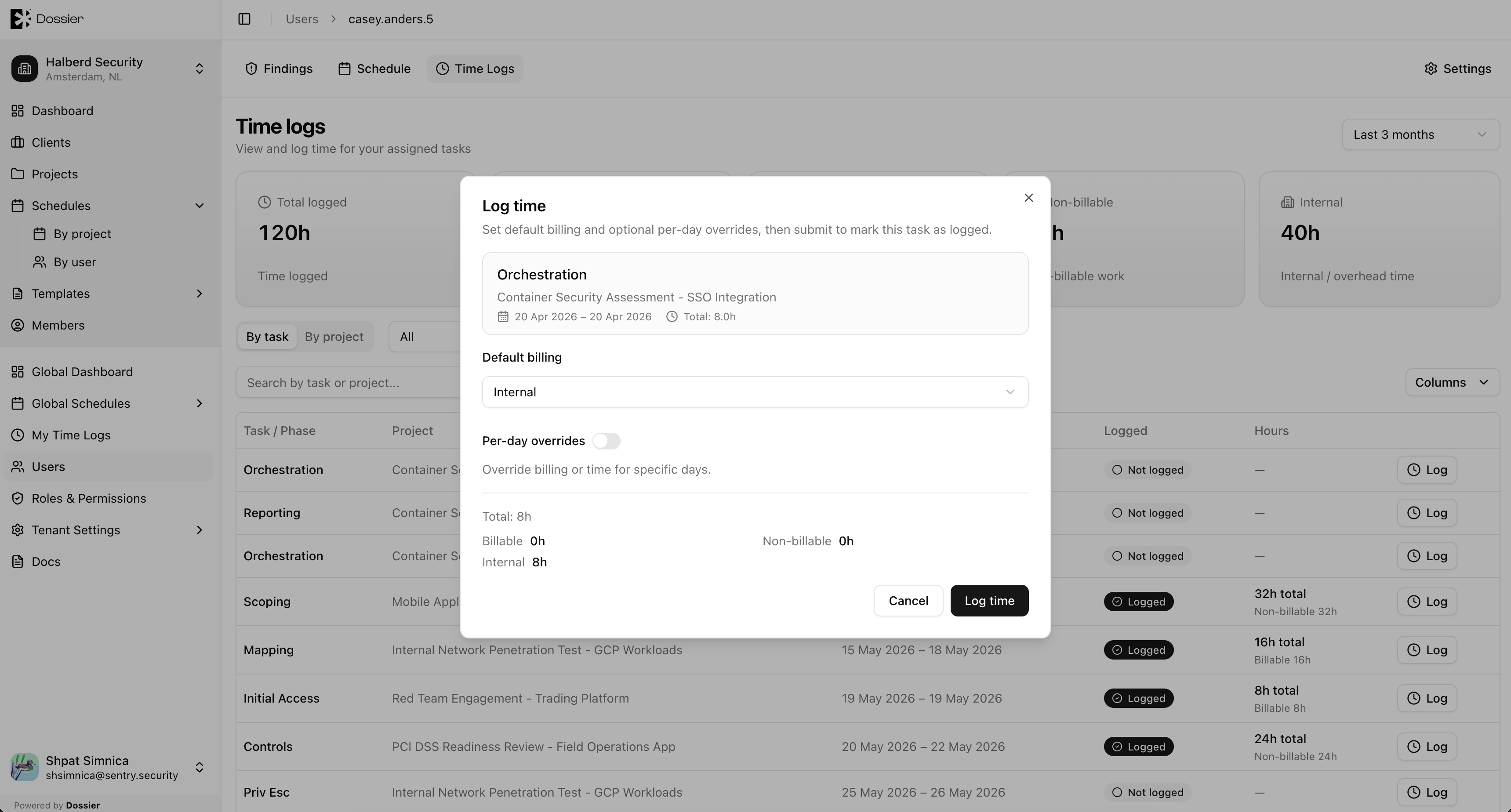
Manage Schedule
Creating a Phase
Step 1: Navigate to the Schedule tab
Open a project and click Schedule in the section navigation.
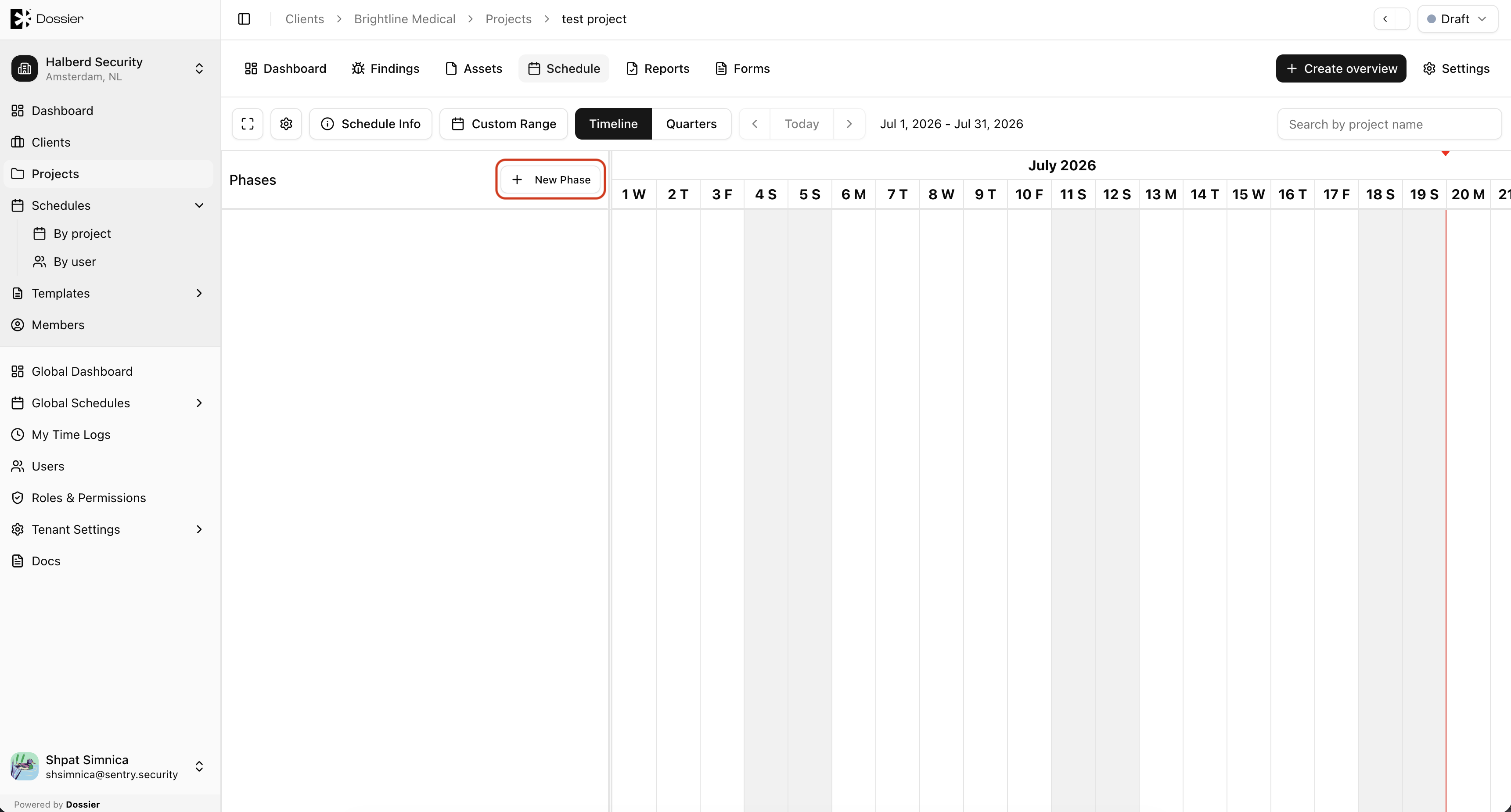
Step 2: Click Add Phase
Enter the phase name and select a date range.
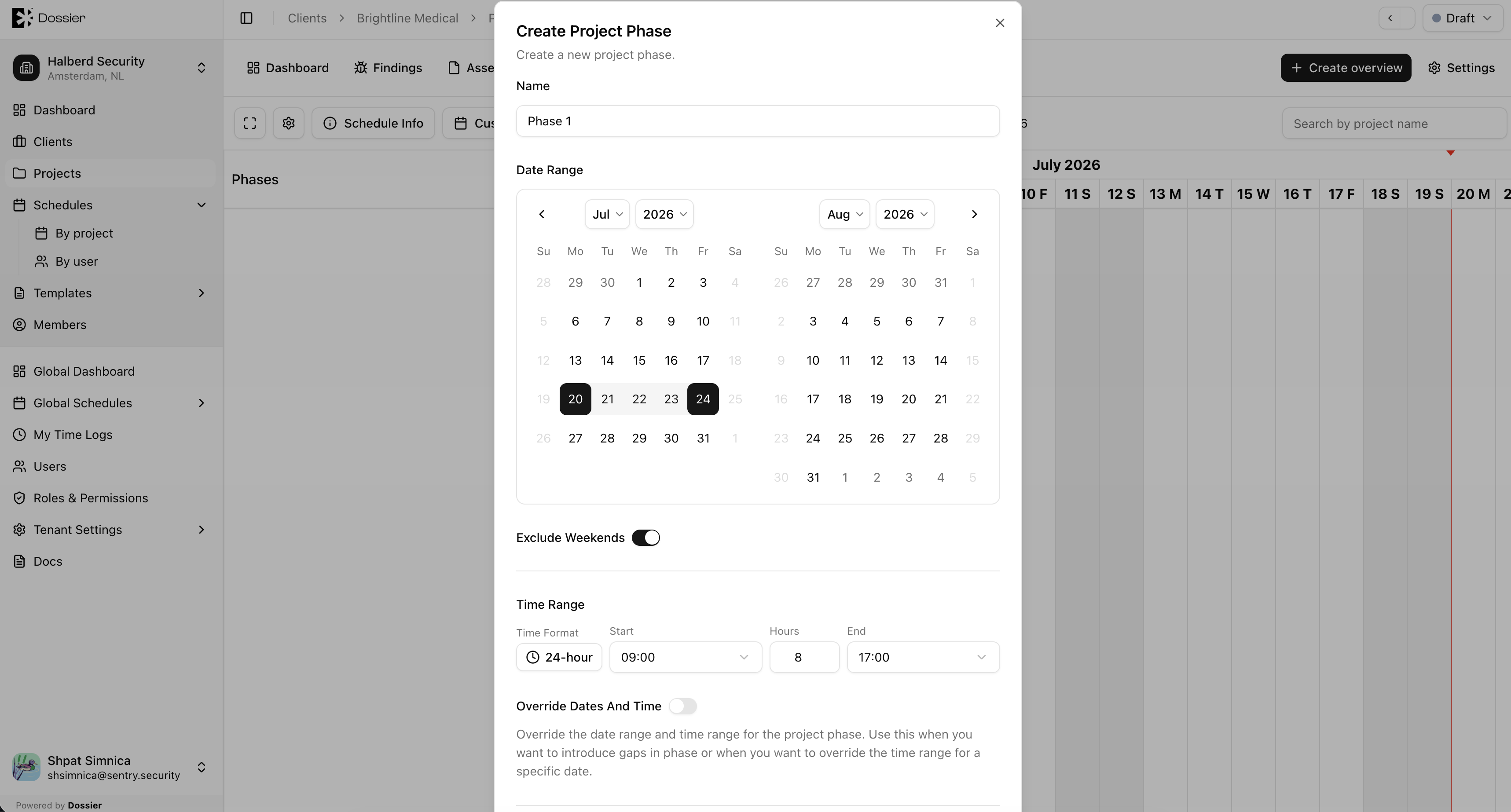
Step 3: Click Create
The phase appears on the project calendar as a block spanning the selected dates.
Adding a User Task
Step 1: Open a phase
Click a phase on the calendar or use the phase action menu.
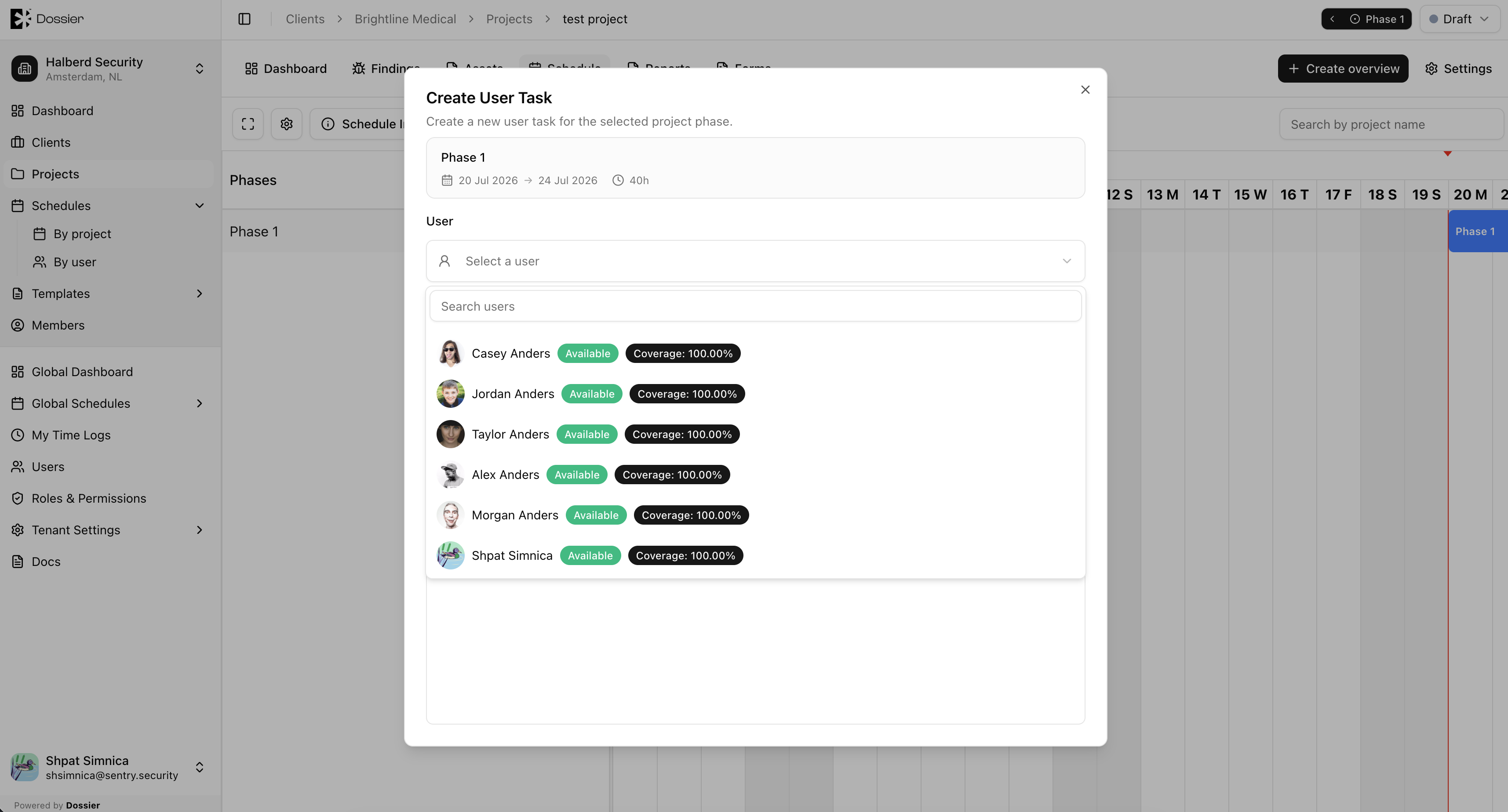
Step 2: Click Add Task
Select the consultant and define the task date range within the phase.
Step 3: Set working hours
Choose the default daily working hours for the task. The default is 9:00 AM to 5:00 PM (8 hours).
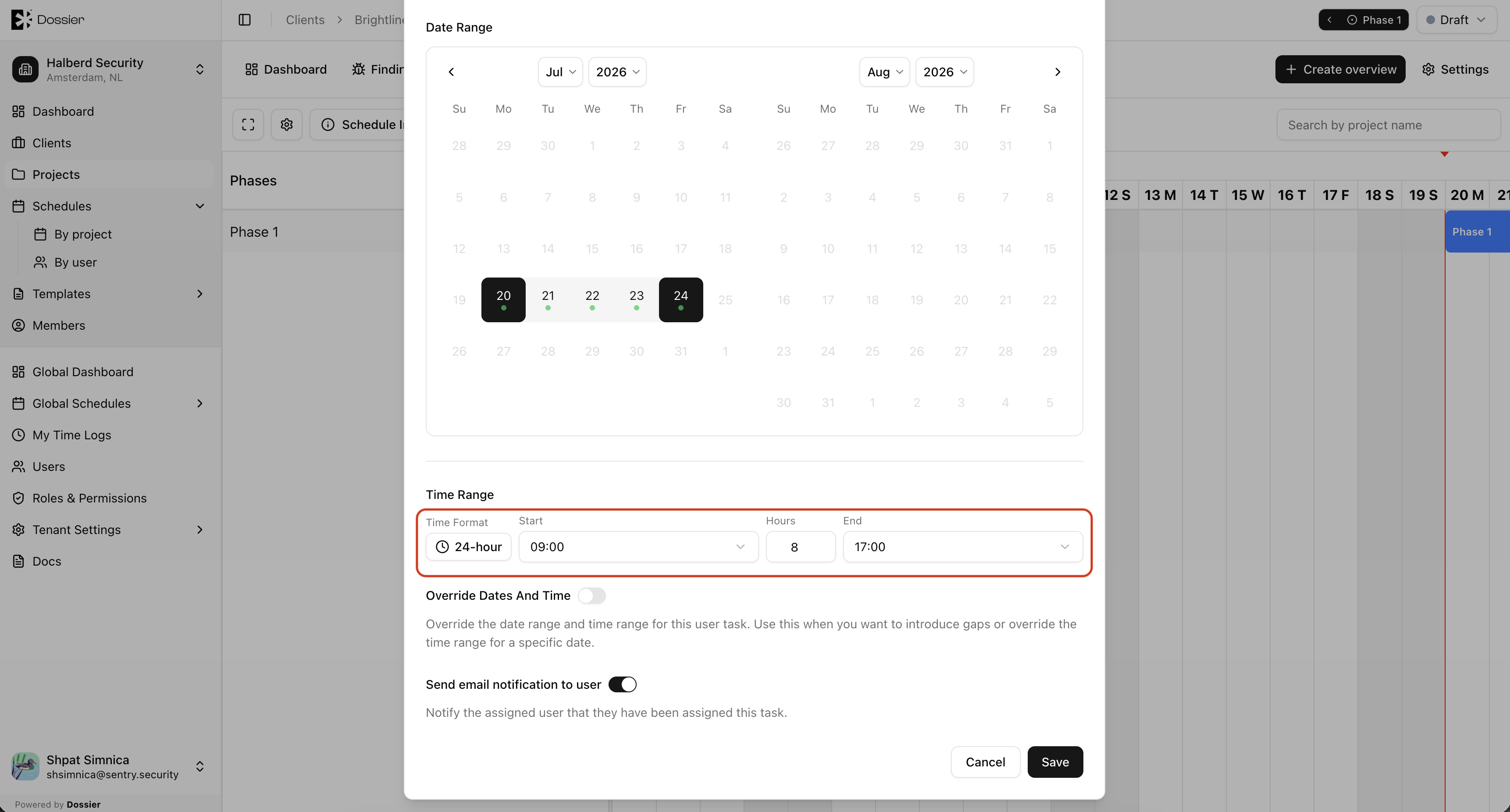
Step 4: Click Create
The consultant appears on the calendar for the assigned dates.
You can partially book a consultant (fewer than 8 hours per day) or overbook them (more than 8 hours). Partial bookings show in yellow; overbookings show in red on the calendar.
Updating a Task
Step 1: Click the task on the calendar
Click the consultant's assignment block to open the task dialog.
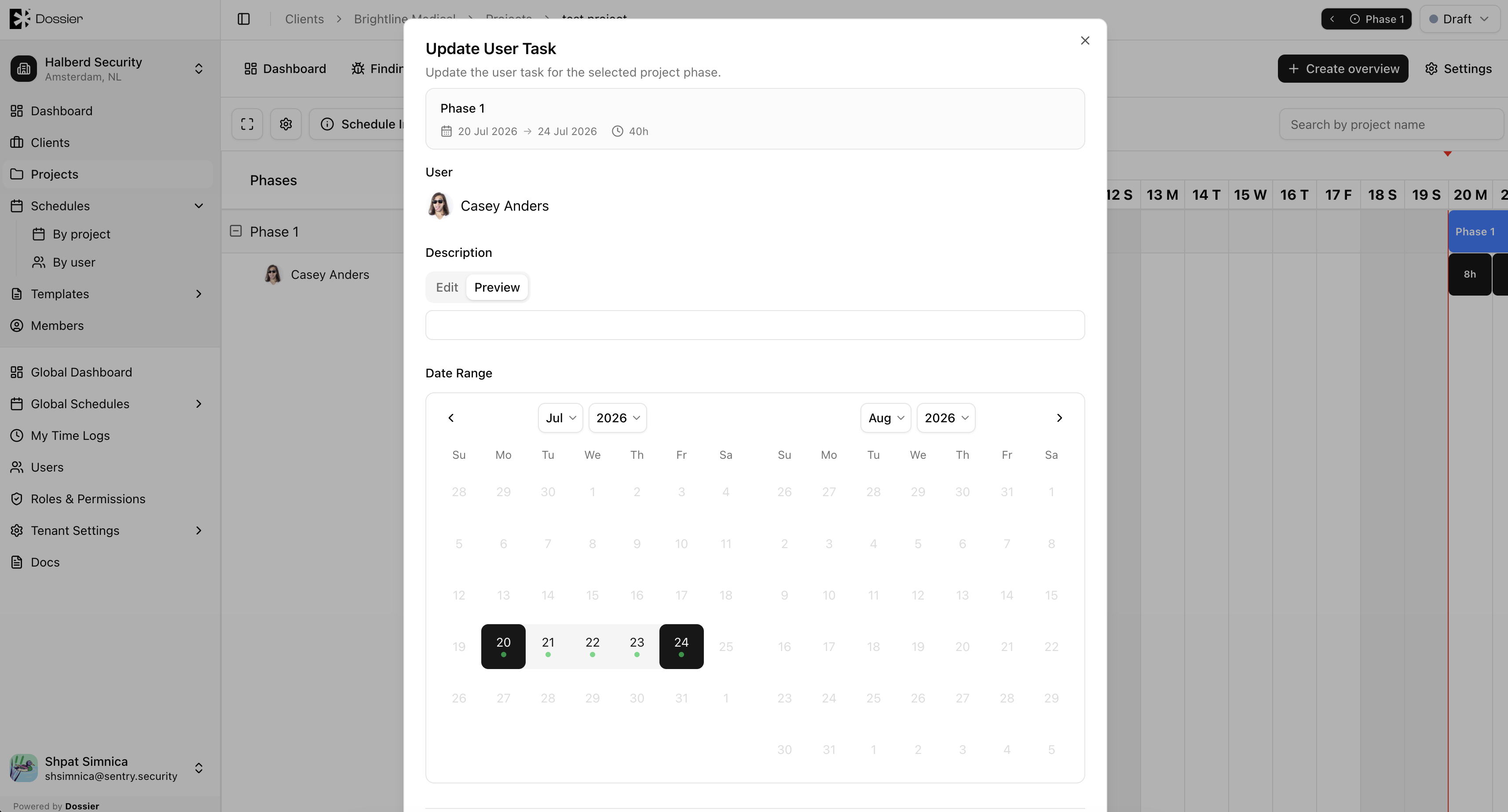
Step 2: Modify dates or hours
Add or remove days, adjust working hours, or change the assigned consultant.
Step 3: Click Save
Changes are applied to the calendar.
Overriding Daily Hours
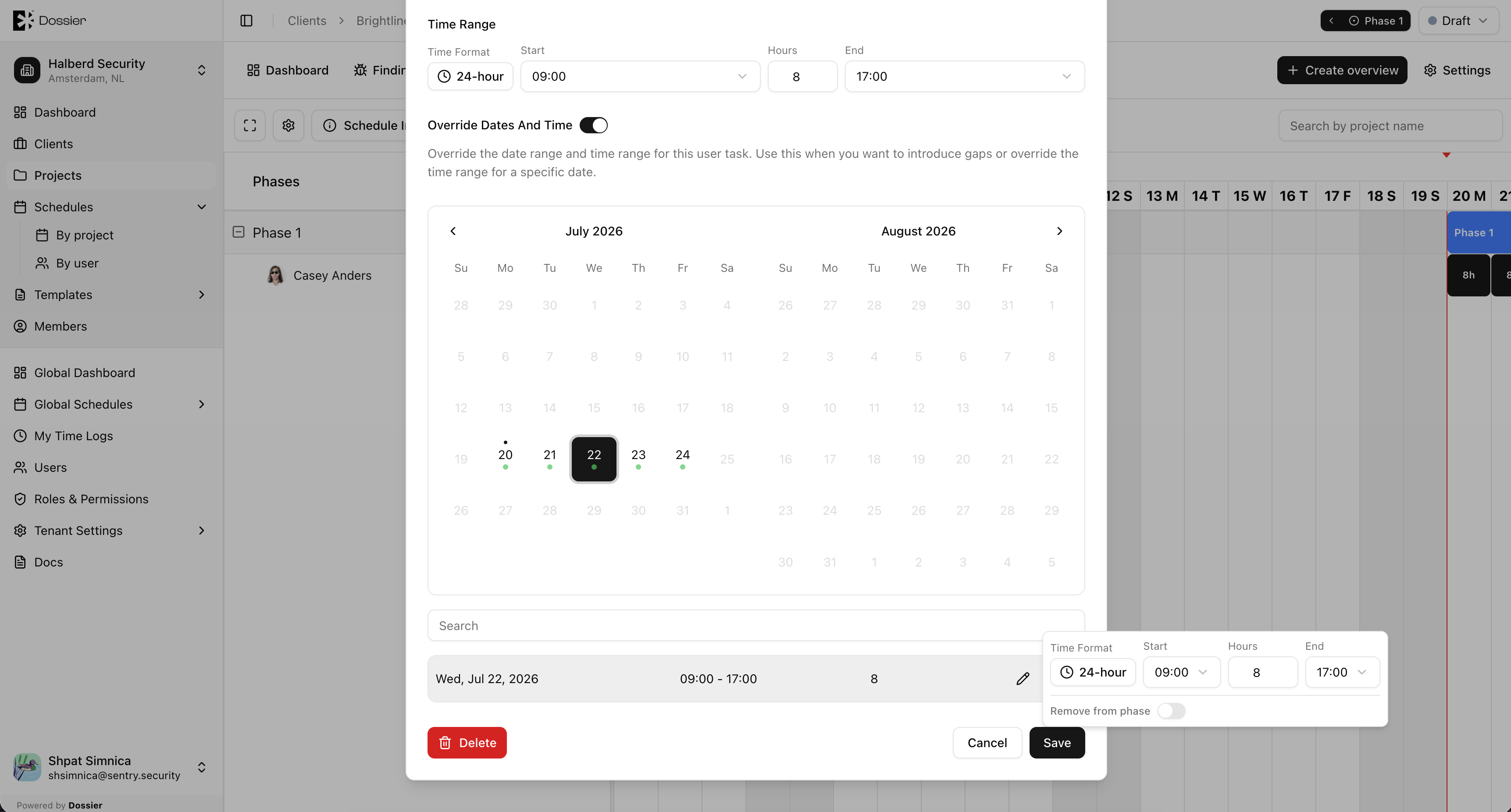
For individual days within a task, you can override the default hours:
- Click the specific day on the calendar.
- Adjust the hours for that day.
- Save the override.
Deleting a Task
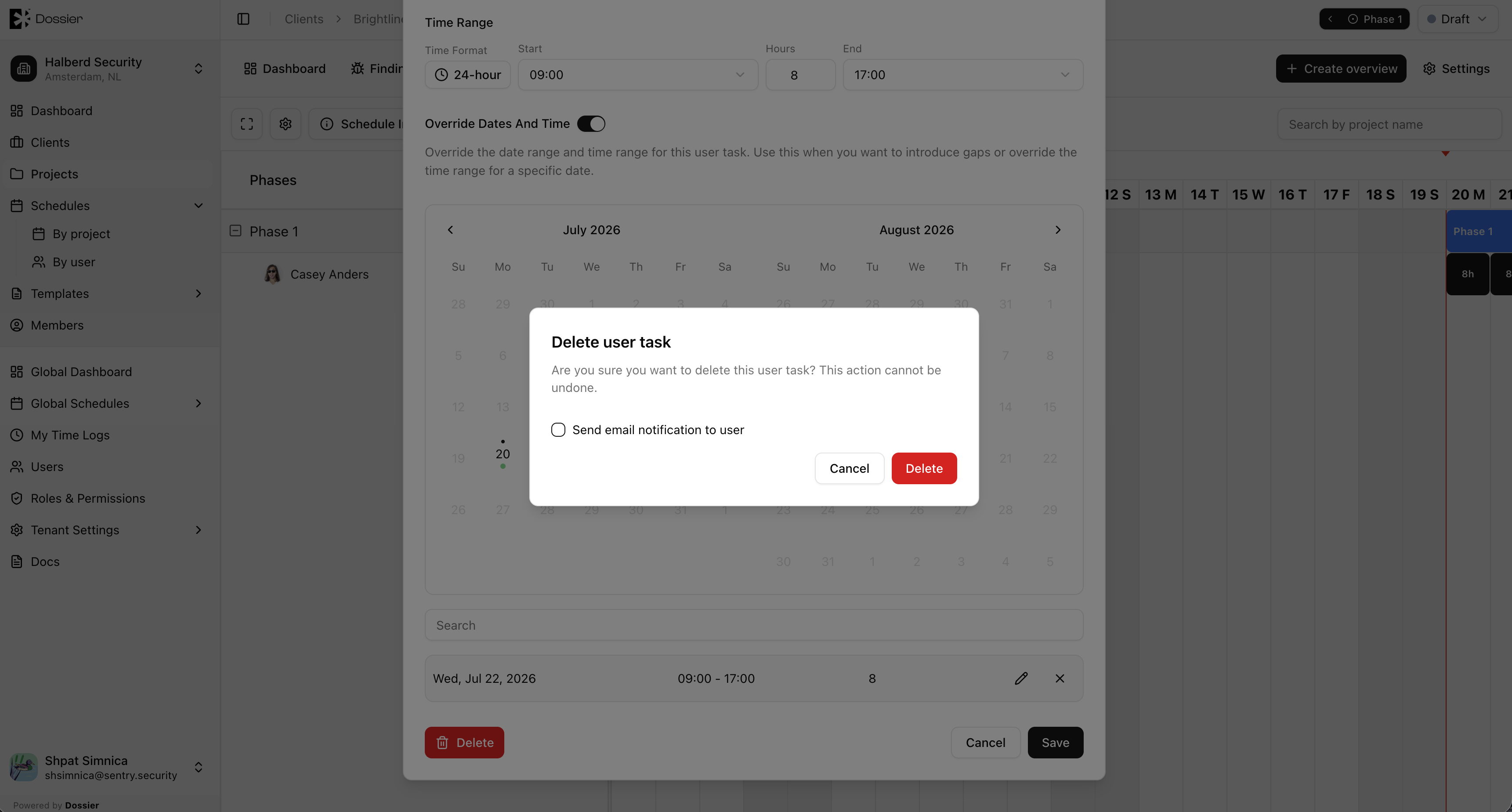
- Open the task dialog.
- Click Delete.
- Confirm in the dialog.
Deleting a Phase
Deleting a phase also deletes all user tasks assigned to it.
- Open the phase settings.
- Click Delete.
- Confirm in the dialog.
Deleting a phase removes all consultant assignments within it. Logged time against those tasks may be affected.
Logging Time Against Tasks
Consultants log hours against their assigned tasks from My Time Logs in the sidebar. See Time Logs for details.